 FileFlow
FILEFLOW
Your first three files.
A small trial. From your first folder to your first plan.
1. Make a little room to experiment
Create two separate local folders: FileFlow Test Source and FileFlow Test Archive. Neither should be inside the other. Put three disposable, non-sensitive copies in the source folder, such as a TXT, PNG, and PDF. Keep the originals elsewhere. For this first trial, avoid synced cloud folders and external drives.
2. Choose your folders
During setup, select and authorize the test archive folder. Choose a Johnny.Decimal template, or use an existing structure with a destination subfolder you have created. Add the test source folder. Check the full path before approving initialization: setup may create FileFlow metadata, which is separate from organizing your source files. Skip AI for this first run.
Understand Johnny.Decimal3. Choose a destination
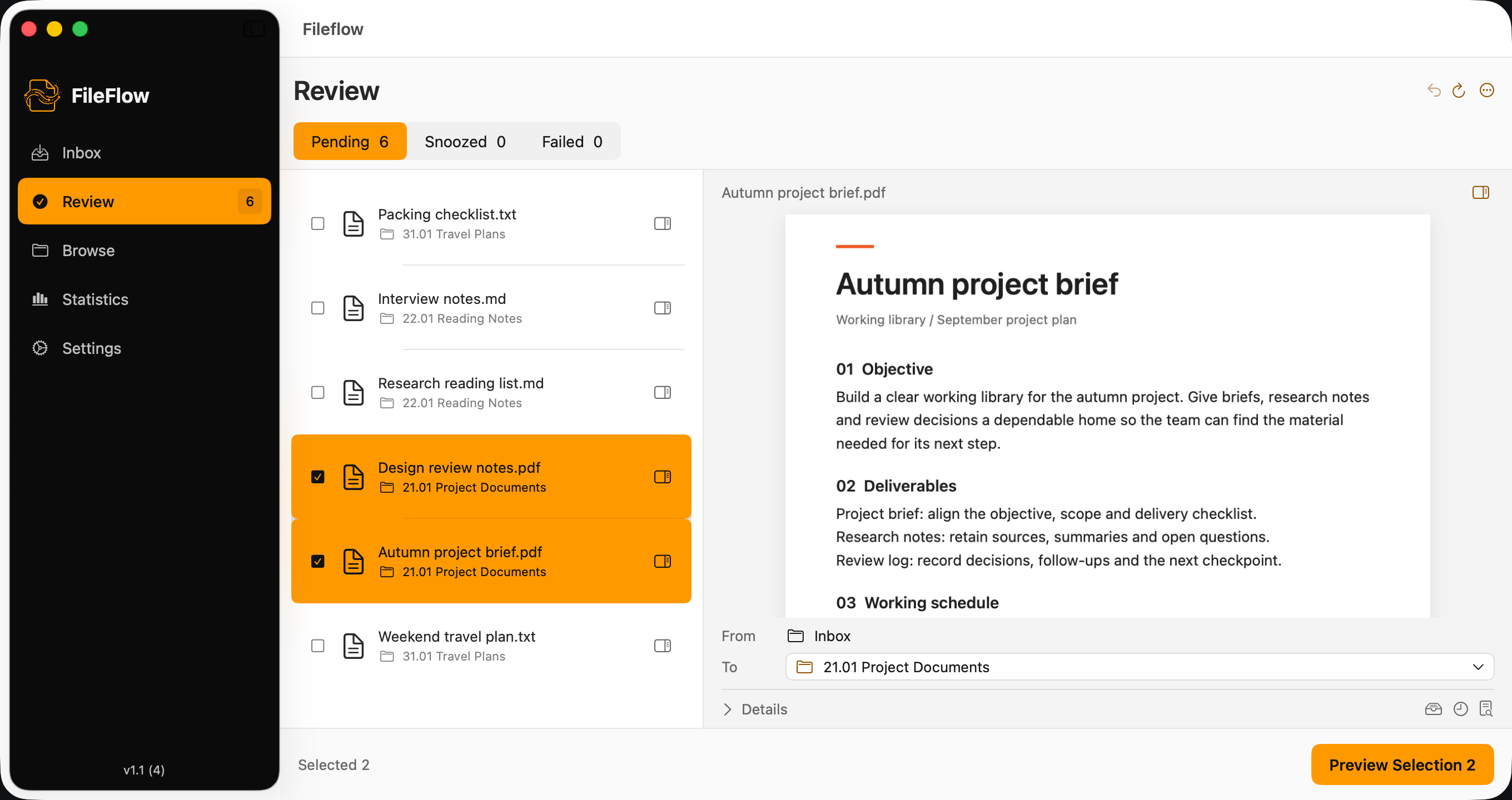
Open Inbox and scan the source folder. Select your three sample files, choose Archive to..., then select a destination and confirm the selection. This opens Review Plan; it does not execute the plan.
4. Read the plan
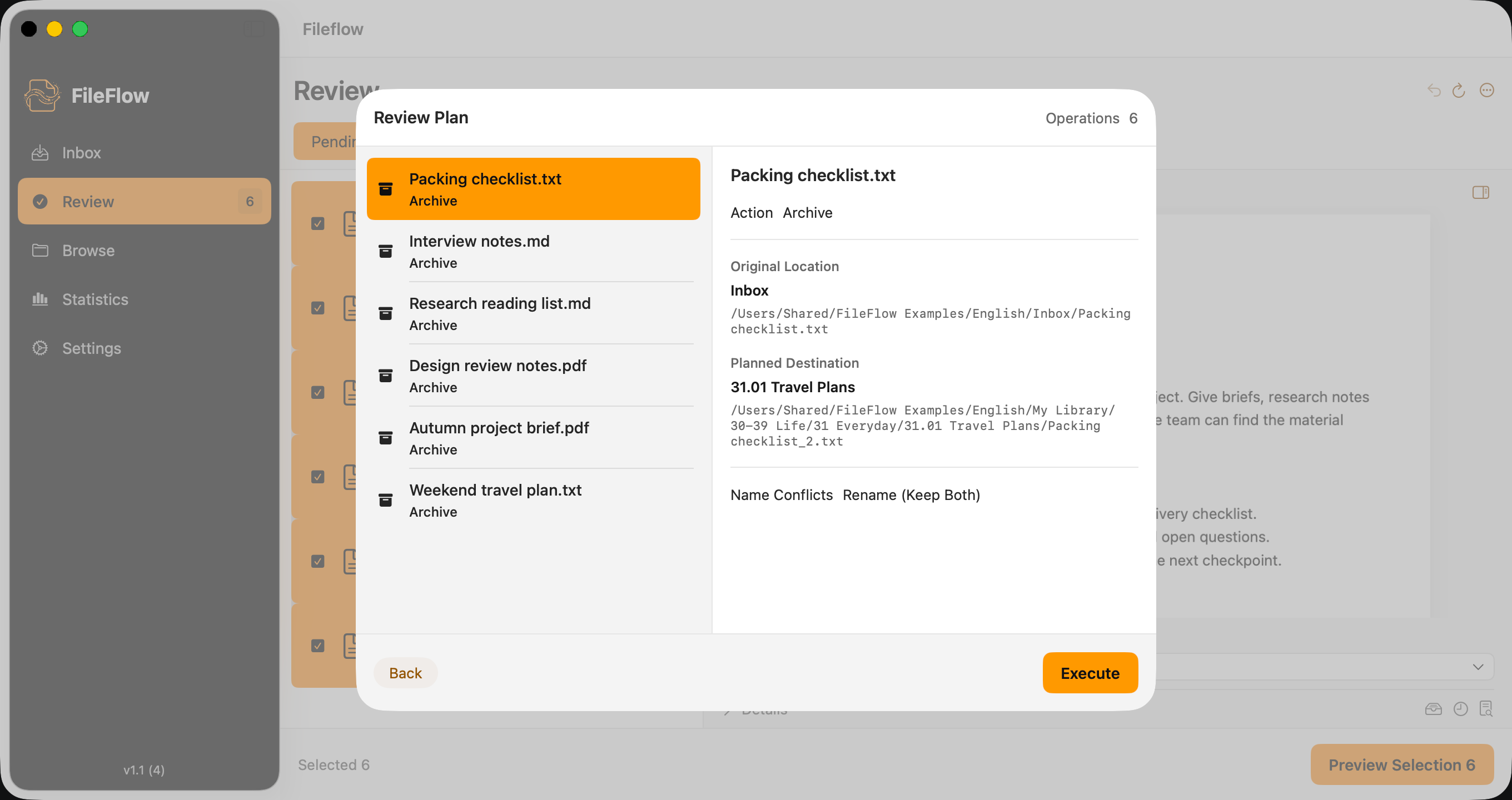
Check the selected files, full source and destination paths, and the name-conflict policy. For this trial, do not overwrite an existing file. Choose Back to revise the selection, or Execute when the plan is correct. Undo cannot recover the previous contents of a file that has been overwritten.
5. Check the actual result
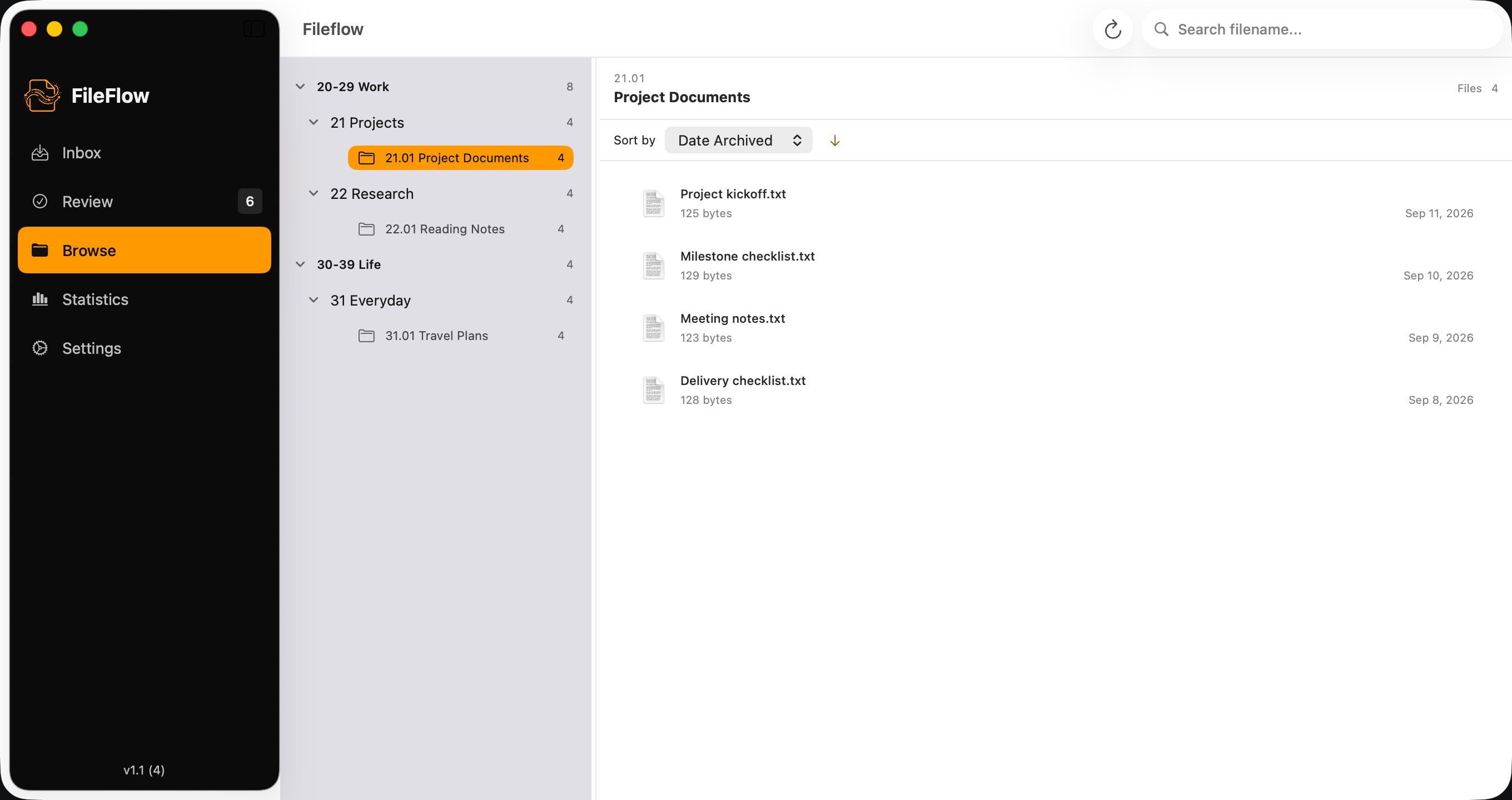
Read the operation results, then open the destination folder and check that the files can be opened. A partially failed run is not a successful batch. Browse and Statistics provide useful views, but an index or recorded receipt alone does not prove that every file is intact.
6. Try an eligible Undo
Use the available Undo action for the recent run and read its prompts. For a normal archive operation, recovery may restore the source while keeping an archive copy. It may also use a Recovered location or require manual action. Check both locations afterward. If Undo is unavailable, retain the files and metadata and read the reason.
7. Add AI later, if it helps
Configure the endpoint, model, protocol, and your authorized key in Settings, then verify and save the connection. A successful connection test does not prove that classifications are correct. Request classification, review each suggested destination, then use Preview Selection to inspect the plan. Cloud requests send metadata and candidate destinations to your provider. Use non-sensitive sample files.
If something interrupts the flow
Check source and destination files before retrying. A destination may contain a partial copy. Abort or Dismiss is not Undo and does not automatically remove fragments or restore files. Do not repeatedly execute a blocked plan or delete metadata to bypass a warning. Preserve the original files and the reported recovery information.
When a root or its metadata is missing
First confirm the original folder or disk is available and reauthorize access if needed. Do not treat an inaccessible folder as an empty one to initialize again. Recovery receipts may help explain recent operations, but cannot reconstruct missing contents. Use the original location or an independent backup.
Then, a few more files
Once you have inspected a plan, checked the result, and understood the recovery behavior, expand gradually. You do not need to start by organizing an entire disk.